Buy Zcash Privately: A Step-by-Step Guide
Published on
Table of Contents
This guide shows you how to buy Zcash ($ZEC) without going through a traditional cryptocurrency exchange.
Most exchanges require you to upload ID and link your identity directly to every crypto purchase. This method skips that - you’ll buy directly from other people using payment apps you already have.
Here’s what we’ll do:
- Use a payment app (e.g. Venmo, PayPal, etc) to buy USDC (a digital dollar) from another person
- Swap that USDC for Zcash directly into your iOS/Android Zcash wallet
That’s it. The whole process takes about 15-20 minutes.
We’ll use the following tools:
- Zodl: A mobile wallet that stores your Zcash and performs swaps
- Peer: A website that connects you with people to buy/sell crypto without any middle-men
What You’ll Need Link to this section
1. Zodl Wallet App Link to this section
Download Zodl on your phone: https://zodl.com
After installing:
- Open the app and tap “Create New Wallet”
- Follow the setup steps
2. A Payment App Link to this section
You’ll need one of the supported payment platforms. I use Venmo for this demo, but zkP2P supports a wide range of payment apps and global currencies.
3. Money to Spend Link to this section
Have ~$10 ready for your first purchase. Small fees will reduce your final amount slightly.
Step 1: Buy USDC (Digital Dollars) Link to this section
I recommend following zkP2P’s official guide to buy USDC. Their guide will walk you through how to:
create an account on zkP2P
find someone selling USDC
pay the seller with your payment app
receive your USDC in your zkP2P account
Important: when you configure your purchase, you’ll be asked to pick a token on a blockchain. Select the USDC token on the Base blockchain.
Important: After you receive your USDC, copy your zkP2P wallet address (starts with “0x”) - you’ll need it as a refund address in Step 2. You can find it in the “Send” tab.
You can find the zkP2P guide here.
Step 2: Swap USDC for Zcash Link to this section
Now you’ll convert your USDC into Zcash using the Zodl app. The ZEC you receive will be private - nobody can see your balance or how you spend your ZEC.
Start the Swap Link to this section
Open the Zodl app on your phone
Tap the “Swap” button
Search for the USDC token on Base
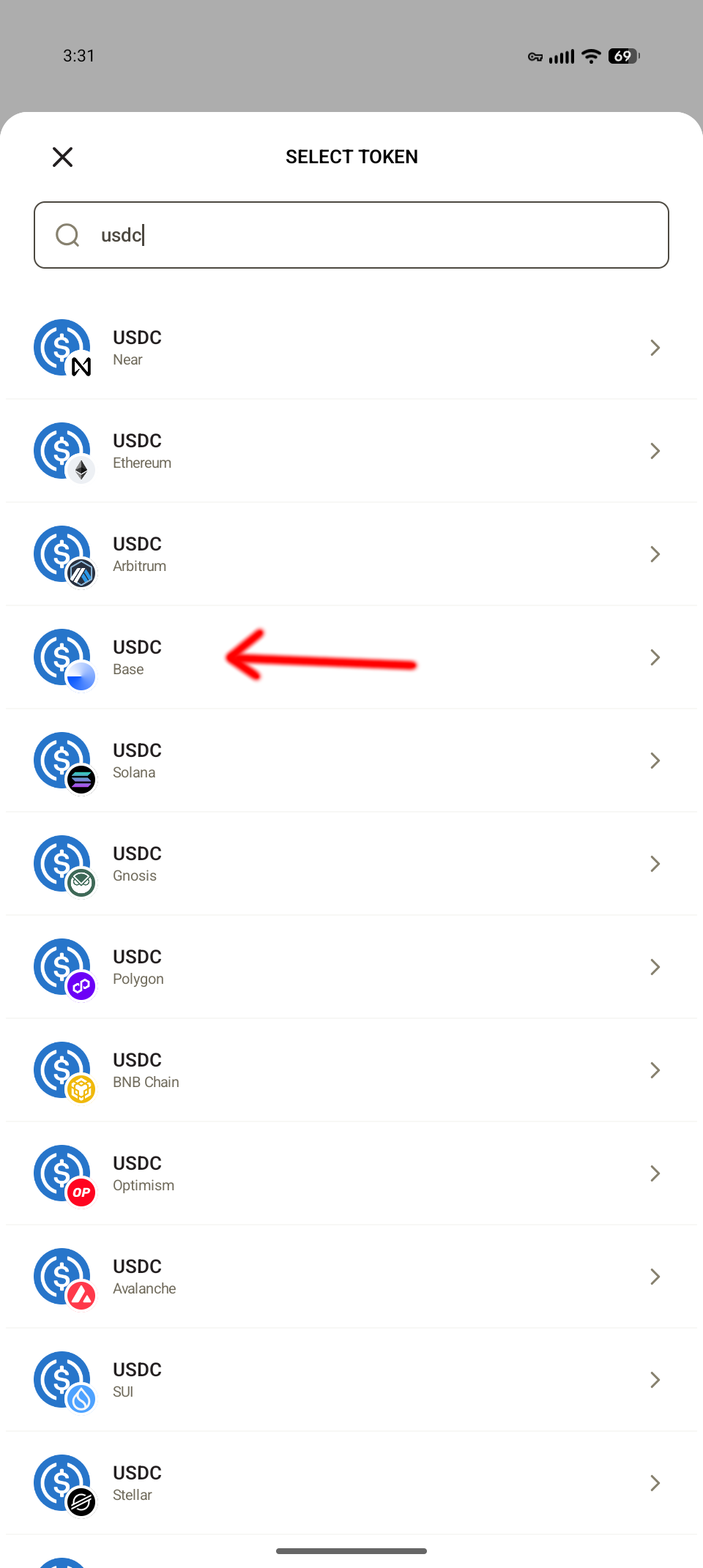
- Paste in your zkP2P wallet address you copied (the one starting with “0x”)
- If the swap fails for any reason, your USDC will be returned to that address.
- Don’t worry. You can try again if the swap fails.
- Tip: Save it as a contact in Zodl so you don’t need to copy/paste next time


Get Your Price Quote Link to this section
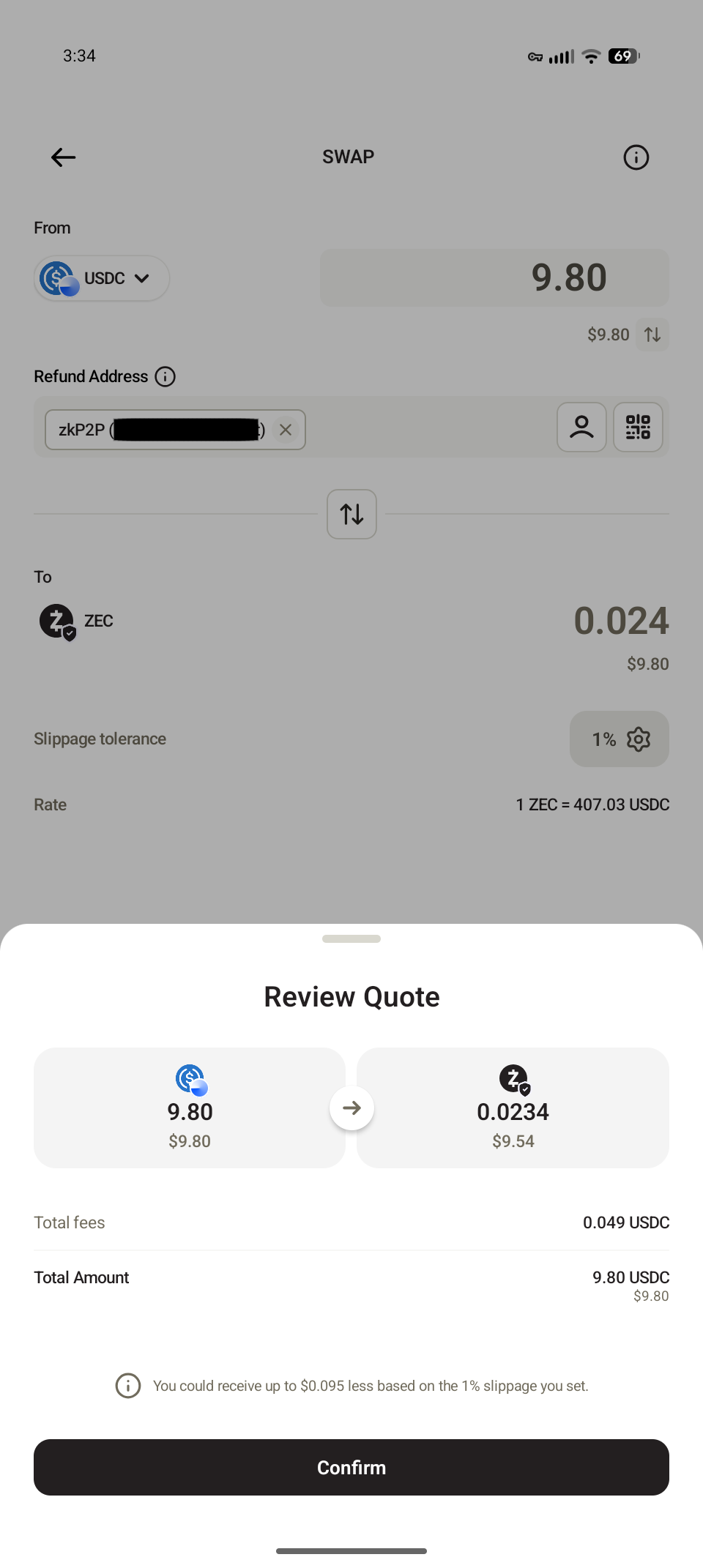
Enter the amount of USDC you want to swap (should match what you have in zkP2P, around $9.80 in my case).
Tap “Get a quote” to see the current exchange rate
Review the quote - you’ll see how much Zcash you’ll receive
Tap to confirm to complete start the trade
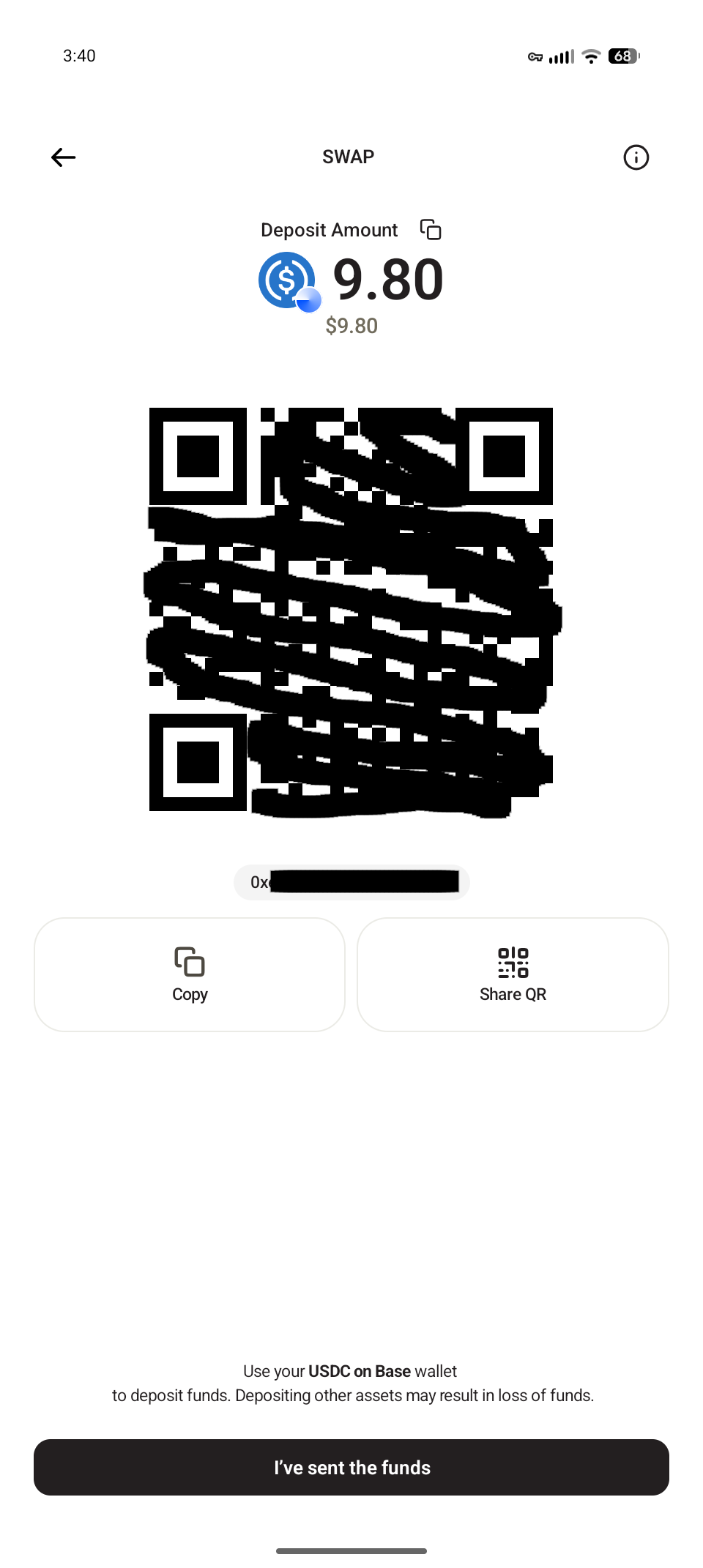
Send Your USDC and Complete the Swap Link to this section
- Zodl shows you an address where you need to send your USDC - copy this address
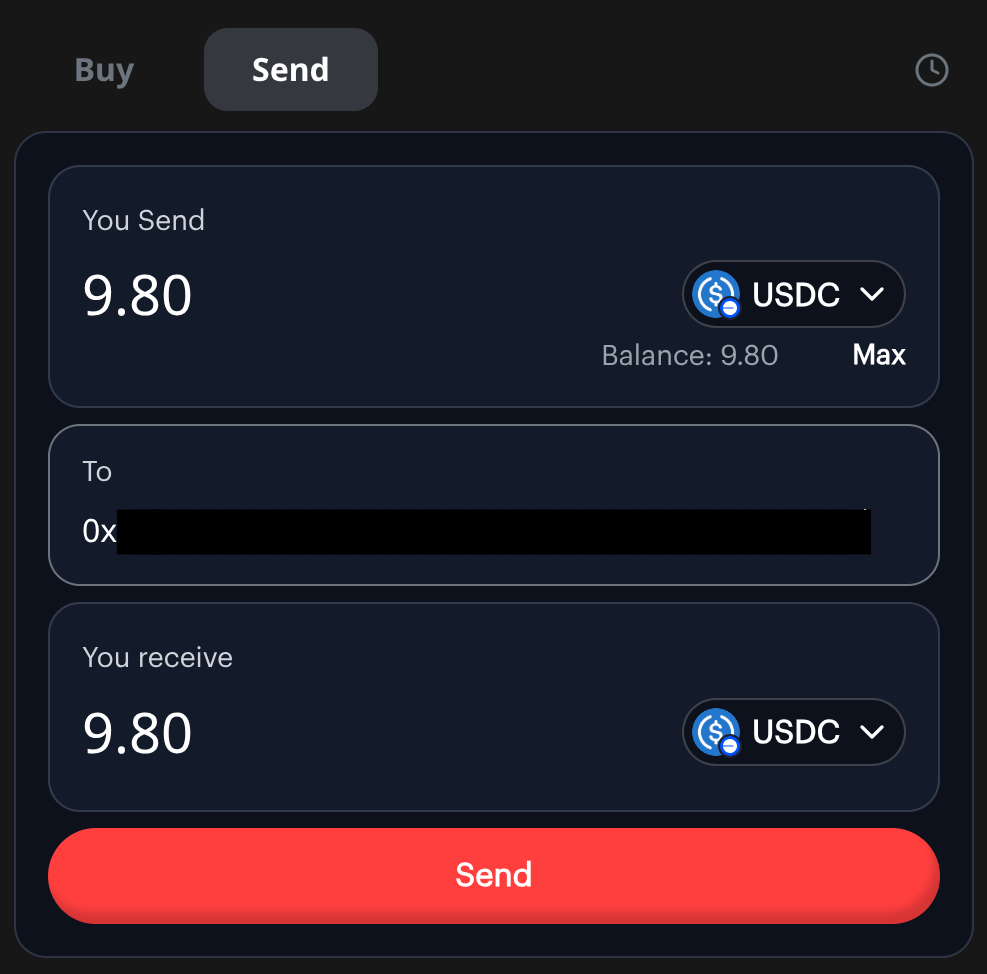
Switch back to zkP2P website, go to the “Send” tab
Paste the address from Zodl and send all your USDC to it
Wait 1-2 minutes for the transaction to confirm
Return to the Zodl app and tap “I’ve sent the funds”
Within moments, you’ll see a “Receiving…” notification in Zodl
After a few minutes, the transaction completes and you have Zcash!
You’re Done! Link to this section
Congratulations! You now own Zcash. Your Zcash will take a few minutes to become “spendable” (ready to send). Once it’s ready, send me a message in the app! I’d love to hear how this guide worked for you :)
“If we can’t crack encryption, then people are walking around with a Swiss bank account in their pocket.” - Barack Obama